

In the first step, let’s install Docker on Ubuntu as an example that can be used during the course. We will also see how to allow a non-root user to run Docker CLI commands, which is important for installing host-based CI/CD tools.
Install Docker on Ubuntu
Docker Engine can be installed on many Linux distributions. For detailed instructions, see the official Docker documentation.
For this course, we will use Ubuntu as an example. You can also follow the official instructions for installing Docker on Ubuntu using the APT repository here.
# Add Docker's official GPG key:
sudo apt update
sudo apt install ca-certificates curl
sudo install -m 0755 -d /etc/apt/keyrings
sudo curl -fsSL https://download.docker.com/linux/ubuntu/gpg -o /etc/apt/keyrings/docker.asc
sudo chmod a+r /etc/apt/keyrings/docker.asc

# Add the repository to Apt sources:
sudo tee /etc/apt/sources.list.d/docker.sources <<EOF
Types: deb
URIs: https://download.docker.com/linux/ubuntu
Suites: $(. /etc/os-release && echo "${UBUNTU_CODENAME:-$VERSION_CODENAME}")
Components: stable
Signed-By: /etc/apt/keyrings/docker.asc
EOF

sudo apt update
sudo apt install docker-ce docker-ce-cli containerd.io docker-buildx-plugin docker-compose-plugin
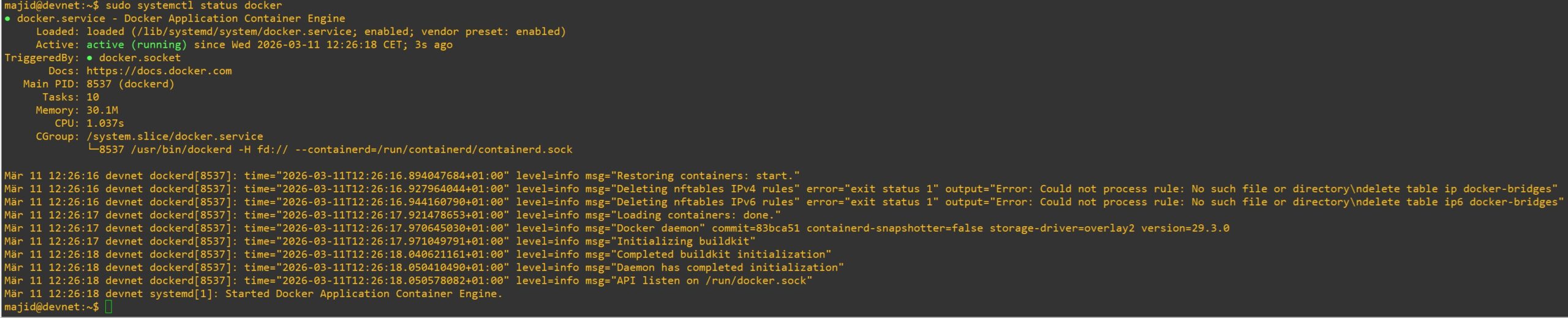
sudo systemctl status docker
sudo systemctl start docker
sudo docker run hello-world
Prepare Docker for Non-Root Users
By default, the Docker socket (/var/run/docker.sock) is owned by root, so running Docker commands usually requires sudo.
The Docker socket is the communication endpoint between Docker clients (such as the Docker CLI) and the Docker daemon (dockerd).
sudo docker ps
sudo docker run nginx
Making Docker runnable by non-root users is not strictly required, but it is very common and recommended for usability. However, it should be noted that users with Docker access effectively gain root-level privileges.
Allowing non-root users to run Docker is useful for convenience, especially for automation scripts and CI/CD pipelines that run under normal user accounts.
To make the Docker CLI available to non-root users, you can add the user to the docker group, which has permission to access the Docker socket. This procedure is officially documented in the Linux post-installation steps for Docker Engine:
The procedure is simple: create the docker group (if it does not exist), add your user to the group, and then log out and log back in so the new group membership takes effect.
When running Linux in a virtual machine, restarting the VM may be required.
sudo groupadd docker
sudo usermod -aG docker $USER
This command downloads a test image and runs it in a container. When the container runs, it prints a message and exits.
docker run hello-world
majid@devnet:~$ sudo groupadd docker
groupadd: group 'docker' already exists
majid@devnet:~$ sudo usermod -aG docker $USER
majid@devnet:~$ docker run hello-world
permission denied while trying to connect to the docker API at unix:///var/run/docker.sock
majid@devnet:~$ exit
# Exit and log in again
majid@devnet:~$ docker run hello-world
Unable to find image 'hello-world:latest' locally
latest: Pulling from library/hello-world
17eec7bbc9d7: Pull complete
Digest: sha256:85404b3c53951c3ff5d40de0972b1bb21fafa2e8daa235355baf44f33db9dbdd
Status: Downloaded newer image for hello-world:latest

Hello from Docker!
This message shows that your installation appears to be working correctly.

To generate this message, Docker took the following steps:
 1. The Docker client contacted the Docker daemon.
 2. The Docker daemon pulled the "hello-world" image from the Docker Hub.
    (amd64)
 3. The Docker daemon created a new container from that image which runs the
    executable that produces the output you are currently reading.
 4. The Docker daemon streamed that output to the Docker client, which sent it
    to your terminal.

To try something more ambitious, you can run an Ubuntu container with:
 $ docker run -it ubuntu bash

Share images, automate workflows, and more with a free Docker ID:
 https://hub.docker.com/

For more examples and ideas, visit:
 https://docs.docker.com/get-started/
You can also configure Docker to start on boot with systemd as follows:
sudo systemctl enable docker.service
sudo systemctl enable containerd.service