

Docker Image vs Docker Container is one of the most fundamental concepts that we need to understand before starting to work in a Docker environment. In this section, I will demonstrate the difference practically.
Docker Image vs Docker Container
A Docker Image is a read-only template that contains an application and all its dependencies (code, libraries, runtime, and configuration). It is used as a blueprint to create containers.
You can think of a Docker image like an ISO file used to install software or an operating system. When you install or boot from the ISO, you get a running system. Similarly, when a Docker image is executed, it creates a running instance called a container.
A Docker Container is a running instance of an image. It provides an isolated and lightweight environment in which the application runs.
Docker images are usually stored in Docker registries such as Docker Hub. A “Docker registry” is a storage and distribution system for Docker images, similar to a repository where images can be uploaded, shared, and downloaded.
| Feature | Docker Image | Docker Container |
|---|---|---|
| Definition | Read-only template containing application and dependencies | Running instance created from a Docker image |
| State | Static | Dynamic / running |
| Purpose | Blueprint used to create containers | Executes the application |
| Modification | Immutable once built | Can change during runtime |
| Lifecycle | Built, stored, and distributed | Created, started, stopped, and removed |
| Storage | Stored in Docker registries | Runs on the Docker host |
| Example | nginx image | A running nginx container |
Docker Image
As discussed in the above paragraphs, a Docker image is a prepared, read-only application that contains all its dependencies. It can be downloaded from a private or public Docker registry such as Docker Hub. You can pull the image to your local machine and run an instance of it, which is called a Docker container.
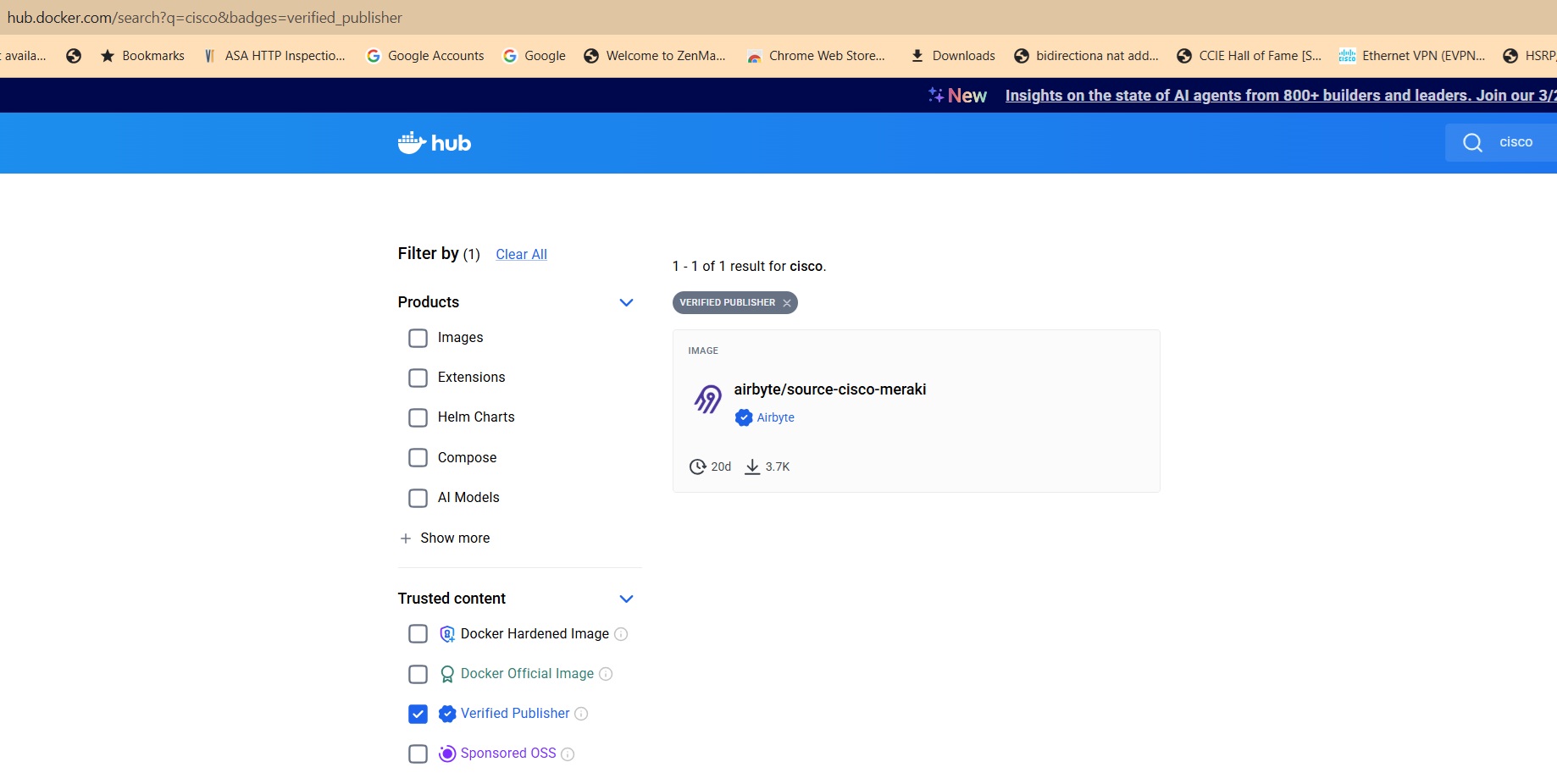
The most popular public Docker registry is Docker Hub, which hosts many verified and community Docker images.
For example, if you search for Cisco on Docker Hub and then filter by “Verified publishers”, you will see images such as airbyte/source-cisco-meraki.
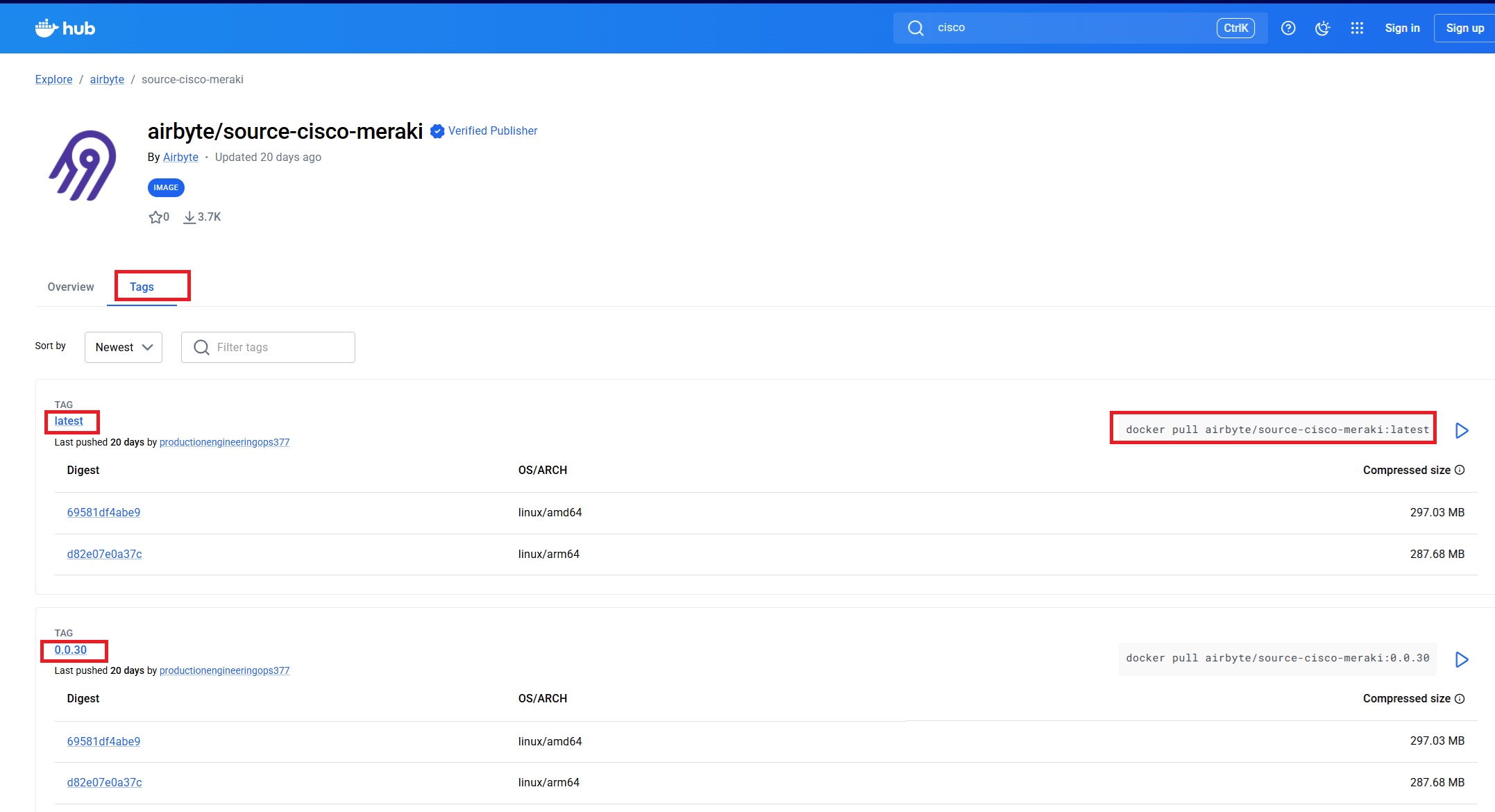
In the Tags tab, you can see the different versions published for the image, the publish date, and the command required to pull (download) each version. Usually, the most recent version can be downloaded using the tag latest.
The docker pull command is used to download an image from Docker Hub.
In the next lessons, we will discuss Docker commands in more detail. For now, let’s look at a simple example of how Docker images are downloaded by running the docker pull command in the Docker environment we prepared in the previous lesson.
majid@devnet:~$ docker pull airbyte/source-cisco-meraki:latest
latest: Pulling from airbyte/source-cisco-meraki
4f4fb700ef54: Download complete
ccac34d1f045: Download complete
9c5c582202f5: Downloading [=======================>                           ]  22.02MB/46.22MB
d38d9dd905a2: Download complete
bc5847f664dc: Download complete
1fd26d6a17a5: Downloading [==>                                                ]  8.389MB/166.9MB
c52789d182a5: Download complete
5c32499ab806: Downloading [====================>                              ]  11.53MB/28.23MB
46f37047d34f: Pulling fs layer
b34f2004b48d: Download complete
b318afe759f7: Download complete
0112aa3102ef: Download complete
108d9f2f4086: Download complete
50e4e64e566b: Download complete
97317ad0b101: Downloading [======================================>            ]  24.12MB/30.98MB
9a75f2ea6515: Download complete
7059b27c1ea8: Download complete
eee33f3dc336: Downloading [==================================>                ]  10.49MB/15.22MB
3330949dfaec: Download complete
e9da2578eb6f: Download complete
7adbff486e54: Download complete
e48d6721d0d5: Download complete
7ecb39529563: Download complete
ad21b682092e: Download complete
ad21b682092e: Download complete
Digest: sha256:eeba177304e8d46225e078806921571567d9cf544cba0d0ff97cb4844d4b3f90
Status: Downloaded newer image for airbyte/source-cisco-meraki:latest
docker.io/airbyte/source-cisco-meraki:latest
Then you can check the downloaded Docker images using the docker images command.
IMAGE – The name of the Docker image and its tag (version).
Example:airbyte/source-cisco-meraki:latestandhello-world:latest.ID – The unique identifier of the image on your system.
DISK USAGE – The total amount of disk space the image occupies on your system, including shared layers.
CONTENT SIZE – The actual size of the image content itself.
EXTRA – Additional information or flags related to the image (for example special status or notes). Here, the
hello-world:latesthas U (In Use).
majid@devnet:~$ docker images
                                                                                                                                                                                                                                                  i Info →   U  In Use
IMAGE                                ID             DISK USAGE   CONTENT SIZE   EXTRA
airbyte/source-cisco-meraki:latest   eeba177304e8       1.04GB          312MB
hello-world:latest                   85404b3c5395       25.9kB         9.52kB    U
majid@devnet:~$
Docker Container
A Docker container is a running instance of a Docker image.
The easiest way to create a running instance of a Docker image is by using the docker run command.
We will explore these commands in detail in the next lesson. For now, just to get a first sense of a Docker container, let’s run a container from a downloaded Docker image.
majid@devnet:~$ docker images
                                                                                                                                                                                                                                                  i Info →   U  In Use
IMAGE                                ID             DISK USAGE   CONTENT SIZE   EXTRA
airbyte/source-cisco-meraki:latest   eeba177304e8       1.04GB          312MB    U
hello-world:latest                   85404b3c5395       25.9kB         9.52kB    U
masadpoor/devnet:latest              58346e451475       2.37GB          418MB
I run the Docker image masadpoor/devnet:latest using the docker run command.
Then, by using docker ps, I can see all currently running containers.
With docker ps -a, I can view all Docker containers, including those that have already stopped.
majid@devnet:~$ docker run masadpoor/devnet:latest
majid@devnet:~$
majid@devnet:~$ docker ps -a
CONTAINER ID   IMAGE                                COMMAND                  CREATED         STATUS                     PORTS     NAMES
9e54b88a8d8a   masadpoor/devnet:latest              "bash"                   5 seconds ago   Exited (0) 4 seconds ago             vigorous_knuth
25f050f46a7a   hello-world:latest                   "/hello"                 2 minutes ago   Exited (0) 2 minutes ago             affectionate_yonath
fc761e0994b8   airbyte/source-cisco-meraki:latest   "python /airbyte/int…"   4 minutes ago   Exited (1) 3 minutes ago             intelligent_solomon
718076276de6   hello-world                          "/hello"                 2 days ago      Exited (0) 2 days ago                youthful_colden
753ffbeabb32   hello-world                          "/hello"                 2 days ago      Exited (0) 2 days ago                condescending_haslett
Docker Registry
A Docker registry is a service that stores and distributes Docker images. It acts as a central repository where images can be pushed, stored, and pulled from.
Developers use a registry to share images with others or to deploy applications across different environments. The most commonly used public registry is Docker Hub, but organizations often use private registries for security and control.
For example, when you run:
docker pull masadpoor/devnet:latest
Docker retrieves the image from a registry. Similarly, you can upload your own images using:
docker push <image_name>