

Docker commands used in daily container environments are covered in this lesson. This includes pulling images, running containers with key parameters (such as detached mode, naming, volume mounting, and port mapping), accessing container shells, copying files into containers, and managing container lifecycles (start, stop, and delete). We also introduce basic monitoring and troubleshooting using docker inspect and docker logs, providing a solid foundation before moving on to more advanced Docker concepts.
Docker Essential Commands
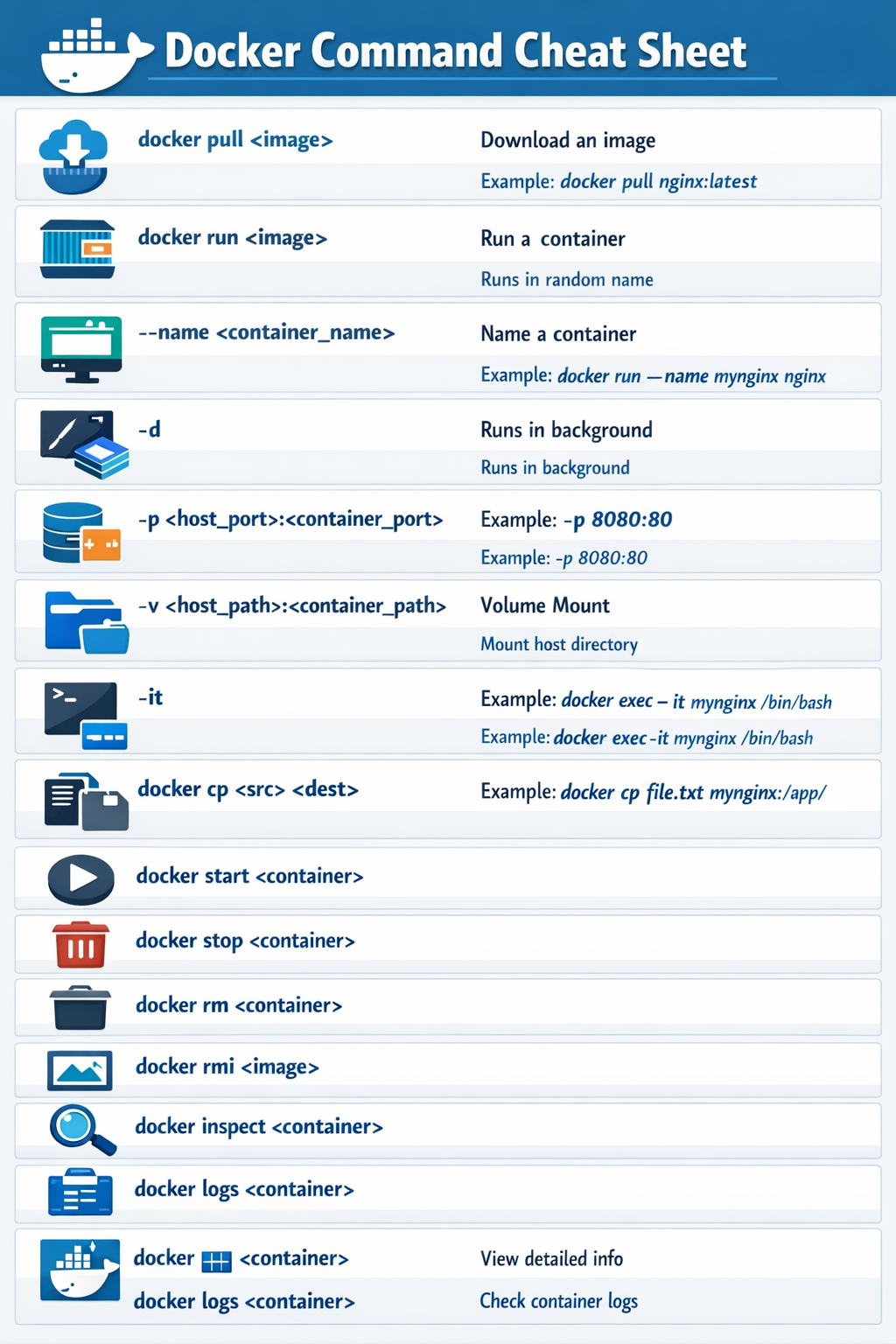
Before starting Docker commands with real examples, here’s a quick summary:
We use docker pull to download a Docker image and docker run to create a container from that image. By default, a random name is assigned to the container, but with the --name option, we can give it a specific name for easy reference later. Using -d, we run the container in detached mode (background) so we can continue using the shell after it starts.
With -p, we map host ports to container ports, allowing access to the container from outside. -v lets us mount host volumes into the container, making files and directories available inside the container environment.
For monitoring and troubleshooting, we can connect to the container shell with -it, and we also learn how to copy files and folders between the host and the container. We cover starting, stopping, and removing both containers and images. Finally, docker inspect and docker logs help us check container properties and verify if it is running successfully.
These are the most fundamental and essential concepts, which we will explore with practical examples in the first step.
| Command / Option | Purpose | Notes / Example |
|---|---|---|
docker pull <image> | Download a Docker image from a registry | Example: docker pull nginx:latest |
docker run <image> | Run a container instance from an image | Automatically assigns a random name |
--name <container_name> | Assign a specific name to a container | Example: docker run --name mynginx nginx |
-d | Run container in detached mode (background) | Allows shell access after container starts |
-p <host_port>:<container_port> | Map host port to container port | Example: -p 8080:80 |
-v <host_path>:<container_path> | Mount host volume into container | Files and directories become accessible inside the container |
-it | Access container shell interactively | Example: docker exec -it mynginx /bin/bash |
docker cp <src> <dest> | Copy files/folders between host and container | Example: docker cp file.txt mynginx:/app/ |
docker start <container> | Start a stopped container | |
docker stop <container> | Stop a running container | |
docker rm <container> | Remove a container | |
docker rmi <image> | Remove a Docker image | |
docker inspect <container> | View detailed container properties | Useful for troubleshooting and monitoring |
docker logs <container> | View container logs | Check if container is running successfully |
docker pull
docker pull is a command used to download a Docker image from a remote registry (such as Docker Hub) to your local system, so it can be used to create and run containers. If the image already exists locally, Docker will use the local copy instead of downloading it again.
If the image already exists locally, Docker will use it directly.
docker pull <registry-address>/<image>
If you don’t specify any registry, Docker uses Docker Hub as the default registry.
docker pull nginx
This is actually interpreted as:
docker pull docker.io/library/nginx
These are two examples of downloading the images masadpoor/devnet and redis from the public Docker Hub.
majid@devnet:~$ docker pull masadpoor/devnet
Using default tag: latest
latest: Pulling from masadpoor/devnet
Digest: sha256:58346e451475ae245d42ed68f38659de4389071577512adb78ecbe5a5c2b4965
Status: Image is up to date for masadpoor/devnet:latest
docker.io/masadpoor/devnet:latest
majid@devnet:~$ docker pull redis
Using default tag: latest
latest: Pulling from library/redis
0f931ab31f87: Pull complete
4f4fb700ef54: Pull complete
20994e17edaf: Pull complete
ec781dee3f47: Pull complete
10c8260904f5: Pull complete
5a9436fedbc6: Pull complete
312488b568d1: Pull complete
52e3bc646886: Download complete
bf00abeea330: Download complete
Digest: sha256:315270d166080f537bbdf1b489b603aaaa213cb55a544acfa51feb7481abb1c0
Status: Downloaded newer image for redis:latest
docker.io/library/redis:latest
docker images & docker rmi
The docker images command is used to list all Docker images stored locally on your system, showing details such as the image name and tag, image ID, content size (actual image size), disk usage (total space used on disk including shared layers), and whether the image is currently in use (U) by any containers.
majid@devnet:~$ docker images
                                                                                                                                                                                                                                                  i Info →   U  In Use
IMAGE                     ID             DISK USAGE   CONTENT SIZE   EXTRA
masadpoor/devnet:latest   58346e451475       2.37GB          418MB    U
python:3.14.3             b84cdd2fa6ce       1.63GB          432MB
redis:latest              315270d16608        204MB         55.3MB
As an example, I remove two images from my local system using the docker rmi command, just to see how the output of the docker images command changes. Here, rm stands for remove and i stands for image. Without the i, the command applies to containers, which we will see shortly.
majid@devnet:~$ docker rmi redis:latest
Untagged: redis:latest
Deleted: sha256:315270d166080f537bbdf1b489b603aaaa213cb55a544acfa51feb7481abb1c0
majid@devnet:~$ docker rmi python:3.14.3
Untagged: python:3.14.3
Deleted: sha256:b84cdd2fa6cecfbe93ba5a21a019500da70d9c1586448ad23b674ae859b48ada
majid@devnet:~$ docker images
                                                                                                                                                                                                                                                  i Info →   U  In Use
IMAGE                     ID             DISK USAGE   CONTENT SIZE   EXTRA
masadpoor/devnet:latest   58346e451475       2.37GB          418MB    U
majid@devnet:~$
docker run & docker ps
The docker run command is used to create and start a new container from a specified Docker image.
majid@devnet:~$ docker run masadpoor/devnet:latest
majid@devnet:~$
The docker ps command is used to list containers, showing only running containers by default, while the -a option displays all containers, including those that have stopped.
majid@devnet:~$ docker ps
CONTAINER ID   IMAGE     COMMAND   CREATED   STATUS    PORTS     NAMES
majid@devnet:~$
majid@devnet:~$ docker ps -a
CONTAINER ID   IMAGE                     COMMAND   CREATED         STATUS                     PORTS     NAMES
b662509c0bf1   masadpoor/devnet:latest   "bash"    7 seconds ago   Exited (0) 5 seconds ago             exciting_brahmagupta
majid@devnet:~$
You may ask why a Docker container stops immediately after being started with the docker run command. This is the default behavior of Docker containers, as they are typically designed to run a specific process or application and then exit once that process is completed. This is especially common in CI/CD environments, where containers are used to execute short-lived tasks.
However, there are several methods to keep a container running, which will be discussed shortly.
docker run --name
The --name option in the docker run command is used to assign a specific name to a container when it is created. This makes it easier to reference and manage the container later (for example, when stopping, starting, or deleting it) instead of relying on the automatically generated random name.
majid@devnet:~$ docker run --name devnet masadpoor/devnet:latest
majid@devnet:~$
majid@devnet:~$
majid@devnet:~$ docker ps -a
CONTAINER ID   IMAGE                     COMMAND   CREATED              STATUS                          PORTS     NAMES
bb38689d5eb1   masadpoor/devnet:latest   "bash"    17 seconds ago       Exited (0) 16 seconds ago                 devnet
c5fdae61ecd3   masadpoor/devnet:latest   "bash"    About a minute ago   Exited (0) About a minute ago             suspicious_kepler
b662509c0bf1   masadpoor/devnet:latest   "bash"    2 minutes ago        Exited (0) 2 minutes ago                  exciting_brahmagupta
In this example, the names “suspicious_kepler” and “exciting_brahmagupta” are random names automatically generated by Docker. In contrast, “devnet” is the custom name we assigned using the --name parameter. This demonstrates how --name makes it easier to identify and manage containers.
docker run -it
The -it option in the docker run command combines -i (interactive) and -t (pseudo-TTY), allowing you to interactively access a container’s shell. It is usually used when you want to run a container in an interactive session for monitoring, debugging, or executing commands manually inside the container.
majid@devnet:~$ docker run -it masadpoor/devnet:latest bash
root@c5fdae61ecd3:/devnet#
root@c5fdae61ecd3:/devnet# exit
exit
majid@devnet:~$
docker run -v
The -v option in the docker run command is used to mount a host directory or volume into a container, allowing the container to access and persist files from the host system. It is commonly used for data sharing, configuration, or persistent storage between the host and container.
majid@devnet:~$ docker run -it -v $(pwd):/work --name devnet1 masadpoor/devnet:latest bash
root@f4f7eb03678a:/devnet#
root@f4f7eb03678a:/devnet# ls
ansible  bash  cisco_asa  cisco_ise  cisco_nso  docker_CI_CD  netconf  pyats  python_nornir
root@f4f7eb03678a:/devnet#
root@f4f7eb03678a:/devnet# ls /work/
15.gNMI         Desktop    Downloads  Pictures   VMware-VMvisor-Installer-7.0U3-18644231.x86_64.iso  Videos     description.json  fonts  interfaces  isisnet.json   netbox-docker  nso-instance  public  system.json  testdir  yangsuite
CP046328.scexe  Documents  Music      Templates  VMware-VMvisor-Installer-8.0-20513097.x86_64.iso    cisco_nso  devnet            gnmic  ip.json     neighbor.json  nso-6.0        output        snap    test         yang
root@f4f7eb03678a:/devnet# exit
In this example, a new container named devnet1 is created from the image masadpoor/devnet:latest. Using -it bash, we connect interactively to the container’s bash shell. Additionally, with -v $(pwd):/work, the host’s current directory is mounted into the /work directory inside the container, allowing access to the host files from within the container environment.
dokcer run -d
The -d option in the docker run command is used to run a container in detached mode, meaning the container runs in the background. This allows the terminal to be free for other commands while the container continues running.
majid@devnet:~$ docker run -dit -v $(pwd):/work  masadpoor/devnet:latest bash
862dad98374e53d6f5e3fb1faeebc81267df9b55bf696f8177b0f19d04c82309
majid@devnet:~$
You may ask why, in the previous commands, the shell prompt returned even without using the -d option. This is because the container’s main process finished execution immediately. Since no long-running process was keeping the container alive, it exited and control was returned to the terminal.
However, as will be shown shortly, when a container runs a long-running process, the terminal will remain attached, and you will not return to the shell unless the -d option is used.
docker run ... tail -f /dev/null & dokcer run -d
The purpose of using tail -f /dev/null is to keep the container running indefinitely, since this command continuously waits and does not exit on its own. This is a common technique used when we want a container to stay alive without running a specific application.
In the following command, because the container is running a continuous process using tail -f /dev/null and the -d (detached mode) option is not used, the terminal remains attached to the container. As a result, you do not get your shell prompt back.
Only after pressing Ctrl+C, which sends an interrupt signal to stop the running process, does the container terminate and control return to the shell.
majid@devnet:~$ docker run masadpoor/devnet:latest tail -f /dev/null

^C
^C
^C
got 3 SIGTERM/SIGINTs, forcefully exiting
In the following command -d option runs the container in detached mode, meaning it runs in the background. Instead of attaching the terminal to the container, Docker immediately returns the shell prompt and prints the container ID.
Although the container is still running the long-running process tail -f /dev/null, you can continue using the terminal for other commands.
majid@devnet:~$ docker run -d masadpoor/devnet:latest tail -f /dev/null
deeac5f2545003376b6da0e5678476b990e74bb8be74494b17eca13c8bb87678
majid@devnet:~$
docker run ... -p
The -p option in the docker run command is used to map a port from the host system to a port inside the container, allowing external access to services running in the container.
majid@devnet:~$ docker run -dit --name devnet3 -p 6000:5500 masadpoor/devnet:latest bash
f580cbfdec97a88ef5568827d6f0b1a49da57f3d7a6985678e1ac3d70c85f2e5
majid@devnet:~$
majid@devnet:~$ docker ps
CONTAINER ID   IMAGE                     COMMAND   CREATED         STATUS         PORTS                                         NAMES
f580cbfdec97   masadpoor/devnet:latest   "bash"    3 seconds ago   Up 2 seconds   0.0.0.0:6000->5500/tcp, [::]:6000->5500/tcp   devnet3
d5a8e57d5864   masadpoor/devnet:latest   "bash"    7 minutes ago   Up 7 minutes                                                 devnet2
42528a97e6d0   masadpoor/devnet:latest   "bash"    8 minutes ago   Up 8 minutes                                                 friendly_engelbart
majid@devnet:~$
This example creates and starts a container named devnet3 in detached and interactive mode. The option -p 6000:5500 maps port 6000 on the host to port 5500 inside the container. As shown in the docker ps output, this mapping allows any service running on port 5500 inside the container to be accessed externally through port 6000 on the host system.
docker stop & docker start
docker start is used to start one or more existing containers that are currently stopped, allowing them to resume execution from their previous state.
docker stop is used to gracefully stop one or more running containers by sending a termination signal to the main process, allowing it to shut down properly before stopping.
In this example, the initial output of docker ps -a shows that some containers are in the Up (running) state, such as strange_bassi and boring_goldberg.
After executing the docker stop command, these containers change to the Exited state. Containers can be referenced using either their name or container ID.
majid@devnet:~$ docker ps -a
CONTAINER ID   IMAGE                     COMMAND               CREATED              STATUS                     PORTS     NAMES
70e0f350223d   masadpoor/devnet:latest   "tail -f /dev/null"   About a minute ago   Up About a minute                    boring_goldberg
862dad98374e   masadpoor/devnet:latest   "bash"                3 minutes ago        Up 3 minutes                         strange_bassi
f4f7eb03678a   masadpoor/devnet:latest   "bash"                5 minutes ago        Exited (0) 5 minutes ago             devnet1
bb38689d5eb1   masadpoor/devnet:latest   "bash"                6 minutes ago        Exited (0) 6 minutes ago             devnet
c5fdae61ecd3   masadpoor/devnet:latest   "bash"                7 minutes ago        Exited (0) 7 minutes ago             suspicious_kepler
b662509c0bf1   masadpoor/devnet:latest   "bash"                8 minutes ago        Exited (0) 8 minutes ago             exciting_brahmagupta
majid@devnet:~$
majid@devnet:~$ docker stop strange_bassi
strange_bassi
majid@devnet:~$
majid@devnet:~$ docker stop 70e0f350223d
70e0f350223d
majid@devnet:~$
majid@devnet:~$ docker ps -a
CONTAINER ID   IMAGE                     COMMAND               CREATED          STATUS                        PORTS     NAMES
70e0f350223d   masadpoor/devnet:latest   "tail -f /dev/null"   2 minutes ago    Exited (137) 10 seconds ago             boring_goldberg
862dad98374e   masadpoor/devnet:latest   "bash"                4 minutes ago    Exited (137) 28 seconds ago             strange_bassi
f4f7eb03678a   masadpoor/devnet:latest   "bash"                6 minutes ago    Exited (0) 6 minutes ago                devnet1
bb38689d5eb1   masadpoor/devnet:latest   "bash"                8 minutes ago    Exited (0) 8 minutes ago                devnet
c5fdae61ecd3   masadpoor/devnet:latest   "bash"                9 minutes ago    Exited (0) 9 minutes ago                suspicious_kepler
b662509c0bf1   masadpoor/devnet:latest   "bash"                10 minutes ago   Exited (0) 10 minutes ago               exciting_brahmagupta
majid@devnet:~$
docker rm & docker rmi
docker rm is used to remove one or more stopped containers from the local system. This helps to clean up unused containers and free system resources.
docker rmi is used to remove one or more Docker images from the local system. This allows you to reclaim disk space and manage the set of available images.
We have already demonstrated the docker rmi command, which is used to remove Docker images. Here, we provide an example showing the result of the docker rm command, which is used to remove Docker containers. It illustrates the status of containers before and after running the docker rm command, and how stopped containers can be removed from the system using docker rm.
It is important to note that a container can only be removed if it is stopped, and a Docker image can only be removed if no container is using that image.
majid@devnet:~$ docker ps -a
CONTAINER ID   IMAGE                     COMMAND               CREATED          STATUS                        PORTS     NAMES
70e0f350223d   masadpoor/devnet:latest   "tail -f /dev/null"   2 minutes ago    Exited (137) 10 seconds ago             boring_goldberg
862dad98374e   masadpoor/devnet:latest   "bash"                4 minutes ago    Exited (137) 28 seconds ago             strange_bassi
f4f7eb03678a   masadpoor/devnet:latest   "bash"                6 minutes ago    Exited (0) 6 minutes ago                devnet1
bb38689d5eb1   masadpoor/devnet:latest   "bash"                8 minutes ago    Exited (0) 8 minutes ago                devnet
c5fdae61ecd3   masadpoor/devnet:latest   "bash"                9 minutes ago    Exited (0) 9 minutes ago                suspicious_kepler
b662509c0bf1   masadpoor/devnet:latest   "bash"                10 minutes ago   Exited (0) 10 minutes ago               exciting_brahmagupta
majid@devnet:~$
majid@devnet:~$ docker rm exciting_brahmagupta
exciting_brahmagupta
majid@devnet:~$ docker rm c5fdae61ecd3
c5fdae61ecd3
majid@devnet:~$
majid@devnet:~$ docker ps -a
CONTAINER ID   IMAGE                     COMMAND               CREATED         STATUS                            PORTS     NAMES
70e0f350223d   masadpoor/devnet:latest   "tail -f /dev/null"   3 minutes ago   Exited (137) About a minute ago             boring_goldberg
862dad98374e   masadpoor/devnet:latest   "bash"                5 minutes ago   Exited (137) About a minute ago             strange_bassi
f4f7eb03678a   masadpoor/devnet:latest   "bash"                7 minutes ago   Exited (0) 7 minutes ago                    devnet1
bb38689d5eb1   masadpoor/devnet:latest   "bash"                9 minutes ago   Exited (0) 9 minutes ago                    devnet
majid@devnet:~$
docker exec -it
We have already seen that using the -it option with the docker run command allows us to connect to a container interactively while it is being started.
However, it is often necessary to connect to a running container after it has already been started, for monitoring or troubleshooting purposes. This is done using the docker exec -it command, which allows you to access the container’s shell or run commands interactively inside the container.
This example demonstrates how to connect to an existing Docker container using the docker exec -it <container_name> bash command and then run commands interactively inside the container.
majid@devnet:~$ docker ps
CONTAINER ID   IMAGE                     COMMAND   CREATED          STATUS          PORTS     NAMES
d5a8e57d5864   masadpoor/devnet:latest   "bash"    3 seconds ago    Up 3 seconds              devnet2
42528a97e6d0   masadpoor/devnet:latest   "bash"    46 seconds ago   Up 46 seconds             friendly_engelbart
majid@devnet:~$
majid@devnet:~$ docker exec -it devnet2 bash
root@d5a8e57d5864:/devnet# uname -a
Linux d5a8e57d5864 6.8.0-106-generic #106~22.04.1-Ubuntu SMP PREEMPT_DYNAMIC Fri Mar  6 08:44:59 UTC  x86_64 GNU/Linux
root@d5a8e57d5864:/devnet#
docker cp
The docker cp command is used to copy files or directories between the host system and a Docker container, in either direction.
This example copies the file description.json from the host system into the root (/) directory of the running container devnet2.
Then, using docker exec -it devnet2 bash, we connect to the container and run ls /, which shows that description.json is now present inside the container, confirming that the copy operation was successful
majid@devnet:~$ docker cp description.json devnet2:/
Successfully copied 2.05kB to devnet2:/
majid@devnet:~$
majid@devnet:~$ docker exec -it devnet2 bash
root@d5a8e57d5864:/devnet# ls /
bin  boot  description.json  dev  devnet  etc  home  lib  lib64  media  mnt  opt  proc  root  run  sbin  srv  sys  tmp  usr  var
root@d5a8e57d5864:/devnet#
docker logs & docker logs -f
The docker logs command is used to retrieve and display the logs generated by a container, helping to monitor its output and diagnose issues.
The docker logs -f command is used to follow the container logs in real time, continuously displaying new log output as it is generated, similar to the tail -f command.
In this simple example, there are no logs to be displayed in the output, as the container does not generate any log output.
majid@devnet:~$ docker logs devnet2
majid@devnet:~$
majid@devnet:~$ docker logs -f devnet2

^C
majid@devnet:~$
docker inspect
The docker inspect command is used to retrieve detailed information about a Docker container or image in JSON format. It provides configuration, state, network, and storage details, allowing administrators and developers to monitor, troubleshoot, and analyze containers.
majid@devnet:~$ docker inspect devnet2
[
    {
        "Id": "d5a8e57d58643803d4435a96f97097f4fd90d2db668a8cc10db0e59b0ba42880",
        "Created": "2026-03-19T22:23:12.084846475Z",
        "Path": "bash",
        "Args": [],
        "State": {
            "Status": "running",
            "Running": true,
            "Paused": false,
            "Restarting": false,
            "OOMKilled": false,
            "Dead": false,
            "Pid": 18776,
            "ExitCode": 0,
            "Error": "",
            "StartedAt": "2026-03-19T22:23:12.198152263Z",
            "FinishedAt": "0001-01-01T00:00:00Z"
        },
        "Image": "sha256:58346e451475ae245d42ed68f38659de4389071577512adb78ecbe5a5c2b4965",
        "ResolvConfPath": "/var/lib/docker/containers/d5a8e57d58643803d4435a96f97097f4fd90d2db668a8cc10db0e59b0ba42880/resolv.conf",
        "HostnamePath": "/var/lib/docker/containers/d5a8e57d58643803d4435a96f97097f4fd90d2db668a8cc10db0e59b0ba42880/hostname",
        "HostsPath": "/var/lib/docker/containers/d5a8e57d58643803d4435a96f97097f4fd90d2db668a8cc10db0e59b0ba42880/hosts",
        "LogPath": "/var/lib/docker/containers/d5a8e57d58643803d4435a96f97097f4fd90d2db668a8cc10db0e59b0ba42880/d5a8e57d58643803d4435a96f97097f4fd90d2db668a8cc10db0e59b0ba42880-json.log",
        "Name": "/devnet2",
        "RestartCount": 0,
        "Driver": "overlayfs",
        "Platform": "linux",
        "MountLabel": "",
        "ProcessLabel": "",
        "AppArmorProfile": "docker-default",
        "ExecIDs": null,
        "HostConfig": {
            "Binds": null,
            "ContainerIDFile": "",
            "LogConfig": {
                "Type": "json-file",
                "Config": {}
            },
            "NetworkMode": "bridge",
            "PortBindings": {},
            "RestartPolicy": {
                "Name": "no",
                "MaximumRetryCount": 0
            },
            "AutoRemove": false,
            "VolumeDriver": "",
            "VolumesFrom": null,
            "ConsoleSize": [
                47,
                262
            ],
            "CapAdd": null,
            "CapDrop": null,
            "CgroupnsMode": "private",
            "Dns": null,
            "DnsOptions": [],
            "DnsSearch": [],
            "ExtraHosts": null,
            "GroupAdd": null,
            "IpcMode": "private",
            "Cgroup": "",
            "Links": null,
            "OomScoreAdj": 0,
            "PidMode": "",
            "Privileged": false,
            "PublishAllPorts": false,
            "ReadonlyRootfs": false,
            "SecurityOpt": null,
            "UTSMode": "",
            "UsernsMode": "",
            "ShmSize": 67108864,
            "Runtime": "runc",
            "Isolation": "",
            "CpuShares": 0,
            "Memory": 0,
            "NanoCpus": 0,
            "CgroupParent": "",
            "BlkioWeight": 0,
            "BlkioWeightDevice": [],
            "BlkioDeviceReadBps": [],
            "BlkioDeviceWriteBps": [],
            "BlkioDeviceReadIOps": [],
            "BlkioDeviceWriteIOps": [],
            "CpuPeriod": 0,
            "CpuQuota": 0,
            "CpuRealtimePeriod": 0,
            "CpuRealtimeRuntime": 0,
            "CpusetCpus": "",
            "CpusetMems": "",
            "Devices": [],
            "DeviceCgroupRules": null,
            "DeviceRequests": null,
            "MemoryReservation": 0,
            "MemorySwap": 0,
            "MemorySwappiness": null,
            "OomKillDisable": null,
            "PidsLimit": null,
            "Ulimits": [],
            "CpuCount": 0,
            "CpuPercent": 0,
            "IOMaximumIOps": 0,
            "IOMaximumBandwidth": 0,
            "MaskedPaths": [
                "/proc/acpi",
                "/proc/asound",
                "/proc/interrupts",
                "/proc/kcore",
                "/proc/keys",
                "/proc/latency_stats",
                "/proc/sched_debug",
                "/proc/scsi",
                "/proc/timer_list",
                "/proc/timer_stats",
                "/sys/devices/virtual/powercap",
                "/sys/firmware"
            ],
            "ReadonlyPaths": [
                "/proc/bus",
                "/proc/fs",
                "/proc/irq",
                "/proc/sys",
                "/proc/sysrq-trigger"
            ]
        },
        "Storage": {
            "RootFS": {
                "Snapshot": {
                    "Name": "overlayfs"
                }
            }
        },
        "Mounts": [],
        "Config": {
            "Hostname": "d5a8e57d5864",
            "Domainname": "",
            "User": "",
            "AttachStdin": false,
            "AttachStdout": false,
            "AttachStderr": false,
            "Tty": true,
            "OpenStdin": true,
            "StdinOnce": false,
            "Env": [
                "PATH=/usr/local/bin:/usr/local/sbin:/usr/local/bin:/usr/sbin:/usr/bin:/sbin:/bin",
                "LANG=C.UTF-8",
                "GPG_KEY=A035C8C19219BA821ECEA86B64E628F8D684696D",
                "PYTHON_VERSION=3.11.13",
                "PYTHON_SHA256=8fb5f9fbc7609fa822cb31549884575db7fd9657cbffb89510b5d7975963a83a"
            ],
            "Cmd": [
                "bash"
            ],
            "Image": "masadpoor/devnet:latest",
            "Volumes": null,
            "WorkingDir": "/devnet",
            "Entrypoint": null,
            "Labels": {
                "maintainer": "[email protected]"
            }
        },
        "NetworkSettings": {
            "SandboxID": "35adea9e93aedd74b69b5ef8689f3261fc8e60409f0e289df784f76b2d0ffab9",
            "SandboxKey": "/var/run/docker/netns/35adea9e93ae",
            "Ports": {},
            "Networks": {
                "bridge": {
                    "IPAMConfig": null,
                    "Links": null,
                    "Aliases": null,
                    "DriverOpts": null,
                    "GwPriority": 0,
                    "NetworkID": "58a00ee4de79070b3dc23d48b9e4df704371f2cc031b263d1048de88af4fe8fb",
                    "EndpointID": "18698d9d29082813618d0927c91ffa374e243ebc26fd60b77a94b4cdc8cb51f9",
                    "Gateway": "172.17.0.1",
                    "IPAddress": "172.17.0.3",
                    "MacAddress": "56:55:56:f0:69:29",
                    "IPPrefixLen": 16,
                    "IPv6Gateway": "",
                    "GlobalIPv6Address": "",
                    "GlobalIPv6PrefixLen": 0,
                    "DNSNames": null
                }
            }
        },
        "ImageManifestDescriptor": {
            "mediaType": "application/vnd.docker.distribution.manifest.v2+json",
            "digest": "sha256:58346e451475ae245d42ed68f38659de4389071577512adb78ecbe5a5c2b4965",
            "size": 2002,
            "platform": {
                "architecture": "amd64",
                "os": "linux"
            }
        }
    }
]
majid@devnet:~$
In this example, docker outputs a detailed JSON object describing the container devnet2. Key fields of interest include:
Id → Unique container identifier
Name → Container name (
/devnet2)State → Shows if the container is running, paused, or exited, along with PID and exit code
Image → The image used to create the container
Mounts → Lists volumes or directories mounted from the host
HostConfig → Configuration options such as port bindings, restart policies, and network mode
NetworkSettings → IP address, gateway, and network information inside the container
Config → Command, environment variables, working directory, TTY settings, and labels
This information is essential for debugging, checking container status, and understanding its configuration. For example, the "State" field confirms that the container is currently running, and "NetworkSettings" shows the container’s IP address and bridge network configuration.
Cleaning Up Docker Resources (Containers and Images)
Stop all running Containers
The following command stops all running containers on the system.
docker ps -qlists the IDs of all currently running containers.docker stopthen gracefully stops each container by sending a termination signal.
After running this command, all containers move from the Up (running) state to Exited.
majid@devnet:~$ docker stop $(docker ps -q)
f580cbfdec97
d5a8e57d5864
42528a97e6d0
majid@devnet:~$
majid@devnet:~$ docker ps
CONTAINER ID   IMAGE     COMMAND   CREATED   STATUS    PORTS     NAMES
majid@devnet:~$
majid@devnet:~$ docker ps -a
CONTAINER ID   IMAGE                     COMMAND               CREATED              STATUS                        PORTS     NAMES
f580cbfdec97   masadpoor/devnet:latest   "bash"                About a minute ago   Exited (137) 6 seconds ago              devnet3
d5a8e57d5864   masadpoor/devnet:latest   "bash"                8 minutes ago        Exited (137) 6 seconds ago              devnet2
42528a97e6d0   masadpoor/devnet:latest   "bash"                9 minutes ago        Exited (137) 6 seconds ago              friendly_engelbart
70e0f350223d   masadpoor/devnet:latest   "tail -f /dev/null"   22 minutes ago       Exited (137) 20 minutes ago             boring_goldberg
862dad98374e   masadpoor/devnet:latest   "bash"                24 minutes ago       Exited (137) 20 minutes ago             strange_bassi
f4f7eb03678a   masadpoor/devnet:latest   "bash"                26 minutes ago       Exited (0) 26 minutes ago               devnet1
bb38689d5eb1   masadpoor/devnet:latest   "bash"                28 minutes ago       Exited (0) 28 minutes ago               devnet
majid@devnet:~$
Removes all Docker Containers
This command forcefully removes all containers, both running and stopped. After execution, docker ps -a shows that no containers remain on the system.
Without -f, only stopped containers would be removed.
With -f, running containers are also stopped and deleted automatically.
majid@devnet:~$ docker rm -f $(docker ps -aq)
f580cbfdec97
d5a8e57d5864
42528a97e6d0
70e0f350223d
862dad98374e
f4f7eb03678a
bb38689d5eb1
majid@devnet:~$
majid@devnet:~$ docker ps -a
CONTAINER ID   IMAGE     COMMAND   CREATED   STATUS    PORTS     NAMES
majid@devnet:~$
Remove all Docker Images
This command forcefully removes all Docker images from the local system. After running this command, docker images shows that no images remain, effectively cleaning up all stored images.
-f (force) → removes images even if they are referenced by containersmajid@devnet:~$ docker rmi -f $(docker images -q) Untagged: masadpoor/devnet:latest Deleted: sha256:58346e451475ae245d42ed68f38659de4389071577512adb78ecbe5a5c2b4965 majid@devnet:~$
majid@devnet:~$ docker images
                                                                                                                                                                                                                                                  i Info →   U  In Use
IMAGE   ID             DISK USAGE   CONTENT SIZE   EXTRA
majid@devnet:~$